The search for how to go live on all platforms at once usually starts when a creator gets tired of choosing only one audience. YouTube has long-form viewers. TikTok has fast mobile discovery. Facebook may still hold community groups. Twitch has live-native culture. LinkedIn can work for business streams. The problem is not wanting to reach more people. The problem is trying to send one live session everywhere without turning the setup into a mess.
The practical answer is multistreaming. Instead of opening five apps and starting five separate lives, creators use a multistream tool, browser studio, encoder workflow, or custom RTMP setup to send one broadcast to several destinations. StreamYard describes multistreaming as broadcasting live to multiple platforms at the same time from a single session, while YouTube explains that encoder streaming can support screen sharing, gameplay, external audio/video hardware, and advanced production with multiple cameras or microphones.
For Trending Livestream Sound of Text, this article belongs in the Platforms category because the challenge is not only technical. It is about understanding how each platform behaves when one stream is pushed across several destinations at once.
Multistreaming Is The Cleanest Way To Go Live Everywhere
Trying to go live manually on every app is possible in theory, but it is not clean. The creator may need several phones, several screens, separate comment sections, different audio sources, and too much attention split across platforms.
What Multistreaming Actually Does
Multistreaming sends one live broadcast to multiple platforms at the same time. The creator starts one session, then the tool distributes the stream to selected destinations.
A basic multistream setup can include:
- one camera feed
- one microphone source
- one title or topic
- one stream layout
- several connected destinations
- one main control room
- one broadcast going to multiple audiences
StreamYard says it can go live on platforms such as YouTube, Twitch, TikTok, LinkedIn, Facebook, and more from the browser, with no download needed. It also lists direct integrations with Facebook, YouTube, Instagram, LinkedIn, X, Twitch, Kick, and Brightcove, plus custom RTMP support for other destinations.
Why “All Platforms” Should Be Treated Carefully
“All platforms” sounds good in a keyword, but creators should be realistic. Not every platform supports the same format, orientation, comments, scheduling, or approval process.
Some platforms prefer vertical video. Some work better in landscape. Some allow native comments through multistream tools. Some require RTMP. Some require account approval. Some limit features depending on region, account type, or plan.
So the better target is not literally every platform. The better target is every platform that matters to the audience and can be handled without damaging the stream.
The First Rule Is To Pick Anchor Platforms
Before setting up anything, choose the main destinations. A creator does not need ten platforms on day one.
A safer starting set may be:
- YouTube for searchable long-form live content
- Facebook for existing groups or community pages
- TikTok for vertical discovery
- Twitch for gaming or live-native audiences
- LinkedIn for business, education, and professional sessions
The goal is not platform greed. The goal is audience fit.
Step 1 Choose The Right Multistream Method

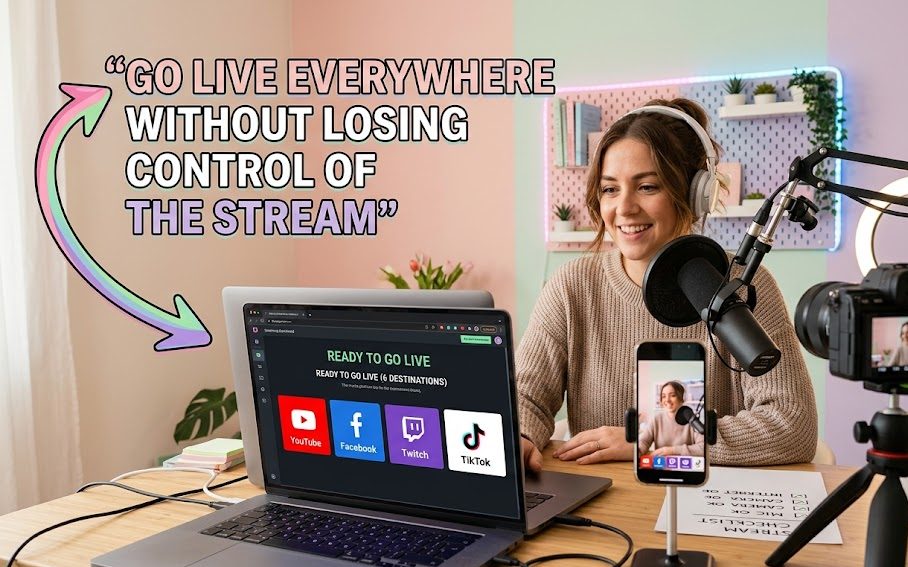
There are two common ways to go live on several platforms: browser-based multistreaming and encoder-based multistreaming.
Browser Studio Method
A browser studio is usually easier for beginners. The creator logs in, connects destinations, sets up the broadcast, enters the studio, and clicks Go Live.
This method is better when the creator wants:
- simple setup
- guest interviews
- basic branding
- no software installation
- one browser-based control room
- easier destination selection
- less technical configuration
StreamYard’s help page says users can create a live stream, select each destination, add a title and description, enter the studio, and click Go Live. It also says multistreaming is available on paid plans, with supported destination counts depending on plan level.
Encoder Method
An encoder method is better for creators who want more control. This usually means OBS, Streamlabs, vMix, Wirecast, hardware encoders, or other production software.
This method is better when the creator needs:
- gaming capture
- several scenes
- advanced audio mixing
- custom overlays
- screen sharing
- capture cards
- local recording
- advanced camera control
- studio-level production
OBS describes itself as free and open-source software for video recording and live streaming, with real-time video/audio capturing, scenes, sources, transitions, audio filters, hotkeys, Studio Mode, and multiview production tools.
Which Method Should Beginners Choose
Beginners should usually choose a browser studio first unless the content needs advanced production. A browser studio is easier to understand. OBS is more powerful, but it can become frustrating when the creator only wants a simple talk stream.
Choose browser studio if you want:
- live talk show
- simple interview
- creator update
- community discussion
- light webinar
- quick multi-platform stream
Choose encoder workflow if you want:
- gameplay
- tutorials
- screen walkthroughs
- advanced scenes
- multiple cameras
- strong audio control
- custom overlays
Step 2 Connect Only The Destinations You Can Manage
Going live everywhere is not useful if the creator cannot manage the audience.
Connect Platform Accounts Before Stream Day
Do not wait until the live session is about to start. Each destination should be connected before the real event.
Check:
- YouTube channel access
- Facebook Page or group permission
- TikTok LIVE access
- Twitch account setup
- LinkedIn Live approval if needed
- custom RTMP details
- title and description fields
- privacy settings
- thumbnail or cover image
- scheduled stream time
StreamYard’s supported destinations page notes that platform differences can include orientation, scheduling, multistreaming, comments, approval requirements, and viewer count support.
Do Not Add Platforms Just For Vanity
More destinations can mean more reach, but also more problems.
Too many platforms can create:
- scattered comments
- weaker moderation
- confusing audience instructions
- different aspect ratio problems
- inconsistent stream titles
- harder analytics review
- more rules to remember
- slower troubleshooting
A creator should add one platform only when there is a reason for that audience to be there.
Keep A Primary Platform
Even when multistreaming, choose one primary platform. This is where the creator will focus the strongest call-to-action, replay strategy, community building, or monetization plan.
A primary platform helps with:
- clearer audience direction
- easier replay management
- stronger comment focus
- simpler analytics
- less stress during technical issues
Multistreaming should expand reach, not erase strategy.
Step 3 Prepare The Format Before Touching Settings
The biggest mistake is treating multistreaming as a button problem. It is also a format problem.
Landscape Or Vertical Must Be Decided Early
YouTube and Twitch often work well in landscape. TikTok and Instagram are usually stronger in vertical. Facebook can handle both depending on placement and audience habit.
Before going live, decide:
- Will the stream be horizontal?
- Will the stream be vertical?
- Will the tool support both?
- Will text be readable on mobile?
- Will the host fit the frame?
- Will screen sharing look too small vertically?
StreamYard says its Multi-Aspect Ratio Streaming can broadcast horizontal and vertical formats simultaneously from one studio session, but creators still need to verify destination orientation support.
One Title May Not Fit Every Platform
A YouTube title can be more searchable. A TikTok live title may need to be shorter and more immediate. LinkedIn may need a professional angle. Twitch may need a category-friendly style.
Before publishing, prepare:
- YouTube title with search intent
- TikTok title with direct hook
- Facebook title for community context
- Twitch title that matches the live category
- LinkedIn title with value-driven wording
If the multistream tool allows platform-specific titles, use that feature. If not, choose a title that does not feel wrong anywhere.
The Opening Must Welcome Every Audience
When viewers come from different platforms, the opening should not sound like it belongs to only one place.
Avoid saying only:
- “Hello YouTube”
- “Twitch chat, are you ready?”
- “Facebook friends only”
- “TikTok, tap this now”
Use a broader opening first:
- “Welcome everyone joining from YouTube, TikTok, Facebook, Twitch, and other platforms.”
- “Wherever you are watching from, drop your platform and city in the chat.”
- “I am streaming this session across multiple platforms today, so I may answer questions from different chats.”
That small explanation prevents viewers from feeling ignored.
Step 4 Set Up The Stream Source
The stream source is what viewers actually see and hear. This part should be tested before connecting several destinations.
For Browser Studio
Prepare:
- camera permission
- microphone permission
- display name
- background or room setup
- overlay if needed
- guest link if needed
- screen share test
- audio level test
- lighting position
- device charger
Then check:
- does the camera look sharp?
- is the microphone clean?
- is the background too messy?
- does screen sharing show the right window?
- are notifications muted?
- is the internet stable?
For OBS Or Encoder
Prepare:
- main scene
- starting soon scene
- screen share scene
- camera scene
- microphone input
- desktop audio
- stream resolution
- bitrate
- encoder selection
- local recording if needed
- hotkeys if useful
YouTube says encoder streaming requires entering the YouTube Live server URL and stream key into the encoder, and creators should connect hardware such as webcams, microphones, headsets, cameras, mixers, or hardware encoders depending on the stream.
Protect Stream Keys
A stream key lets software send a live broadcast to an account. Do not show it on screen. Do not paste it into random tools. Do not send it to people casually.
Protect it like a password.
Step 5 Test One Private Or Unlisted Stream First
Testing matters more when several platforms are involved. One mistake can spread everywhere at once.
What To Test Before Going Public
Run a short test stream and check:
- video appears on each destination
- audio is not muted
- camera is not delayed badly
- comments appear where expected
- stream title is correct
- privacy setting is correct
- thumbnail or cover is not wrong
- orientation looks acceptable
- screen share is readable
- replay settings are acceptable
YouTube notes that scheduling lets creators promote streams, share URLs, and let viewers receive reminders, while encoder streams can be managed through Live Control Room.
Use A Second Device As A Viewer
Do not trust the studio preview only. Open the stream as a viewer on another device.
Check:
- mobile view
- desktop view
- audio sync
- comment visibility
- platform delay
- stream quality
- title and description
- notification behavior
A stream can look fine in the control room but wrong on the viewer side.
Keep The Test Short
A test does not need to be long. Five minutes can reveal most problems.
Test these lines:
- “This is an audio test.”
- “This is a screen share test.”
- “This is a chat test.”
- “This is a platform delay test.”
- “This is an ending test.”
Then stop the stream and fix issues before the real session.
Step 6 Handle Chat Without Losing Control
Chat becomes harder when viewers talk from different platforms.
Use A Unified Chat Carefully
Some tools show comments from several platforms in one view. That can help the host avoid switching tabs.
StreamYard says comments and questions from every platform can appear in a unified view, but platform-specific behavior still matters.
The host should still remember:
- not all platforms send comments equally
- private streams may limit comments
- some RTMP destinations may not send comments back
- moderation tools vary
- viewer names may appear differently
- platform rules still apply
Avoid Ignoring Smaller Platforms
If YouTube is active but Facebook only has two viewers, the Facebook viewers still matter. Multistreaming works best when the host occasionally acknowledges all platforms.
Say:
- “I see questions coming from YouTube and Facebook.”
- “TikTok viewers, I will check your comments in a moment.”
- “Twitch chat is moving quickly, so I may pin the main questions.”
This keeps the stream feeling shared.
Respect Twitch Simulcast Rules
Twitch allows simulcasting only under specific rules. Its Terms of Service say Twitch users may simulcast if the Twitch user experience is not lower than on other platforms, if creators do not direct the community away from Twitch to other simulcast services, and if they do not use third-party services that merge other platform activity on the Twitch stream.
That means creators should not assume every multistream chat trick is safe for every platform.
Step 7 Build A Simple Run Of Show
A multistream session needs structure because different platforms have different attention spans.
Use A Clear Opening
The opening should explain:
- what the stream is about
- how long it will run
- which platforms are included
- how questions will be handled
- whether replay will be available
- what viewers should do first
Example:
“Welcome. Today I am going live across YouTube, TikTok, Facebook, and Twitch. I will explain the topic first, then answer selected questions from different chats near the end.”
Keep Segments Short
A good multistream format can use:
- 2 minutes for greeting
- 5 minutes for context
- 10 minutes for main teaching
- 5 minutes for demo
- 10 minutes for questions
- 2 minutes for ending
This helps viewers who join from fast-moving platforms like TikTok and viewers who prefer longer sessions on YouTube.
Repeat Key Points For Late Joiners
Live viewers do not all arrive at the beginning. Repeat the topic naturally without sounding robotic.
Use:
- “For anyone just joining, today we are covering…”
- “Quick recap before I move on…”
- “The main point so far is…”
This helps every platform catch up.
Step 8 End The Stream Properly On Every Destination
Ending a multistream is not only pressing one button. Creators should confirm that the stream has stopped on each destination.
Check The Control Room First
After ending, confirm:
- stream has stopped
- recording is saved
- replay is processing
- comments are not still open unexpectedly
- destination dashboards show ended status
- no platform is still receiving video
- no accidental black screen remains live
Review The Replay
After the stream, check:
- audio quality
- first five minutes
- most active segment
- comment flow
- drop-off points
- platform-specific performance
- whether vertical and horizontal viewers had a good experience
This review helps decide whether multistreaming was actually worth it.
Decide Which Platforms Stay Next Time
After one or two sessions, remove platforms that do not help.
Keep platforms that bring:
- real viewers
- good questions
- replay value
- relevant audience
- community growth
- sales or leads
- useful engagement
Remove platforms that only add noise.
Q&A
Can One Person Really Go Live On All Platforms At Once?
Yes, but the cleaner approach is using a multistream platform or encoder workflow instead of manually opening every app. Browser tools like StreamYard can send one session to multiple destinations, while encoder workflows give more production control for advanced streams.
Is It Better To Use OBS Or A Browser Multistream Tool?
Use a browser multistream tool if you want a simpler setup, guest links, and easier destination management. Use OBS or another encoder if you need advanced scenes, gameplay capture, audio filters, screen sharing, overlays, or deeper production control.
Can I Stream To TikTok, YouTube, Facebook, And Twitch At The Same Time?
It can be possible if your accounts are eligible and your multistream tool supports those destinations or custom RTMP. StreamYard lists native support for several major platforms and custom RTMP support for others, but destination features, comments, orientation, and approval requirements can differ.
What Is The Biggest Mistake In Multistreaming?
The biggest mistake is adding too many platforms before the creator can manage the stream. A messy multistream can hurt audio, chat, moderation, layout, and audience focus. Start with a few strong platforms, test first, then expand only when the workflow feels stable.


Nadira Wicaksana is a former social media listening analyst who has monitored creator trends, viral broadcasts, platform updates, and audience conversations across Southeast Asia. She has worked with digital agencies and consumer brands to identify new livestream formats before they become widely adopted. Her articles examine what is gaining attention, why audiences respond to it, and whether a trend has lasting value or is simply passing noise.